We have a sheet where each user is assigned a specific vessel through a “Vessel Assignment” field.
Each vessel has related records created by the assigned user in a main sheet (e.g., /flgo/13).
Our setup is as follows:
Each record has a field “Assigned To” (Select User, Entry Manager).
The user group is currently set as Survey User.
We also have a workflow that updates the “Assigned To” field based on the user’s assigned vessel daily.
Users are re-assigned to different vessels periodically.
Problem:
When a user is re-assigned to a new vessel, they can still see the old vessel’s records that they created earlier, even though they are no longer assigned to that vessel.
We only want users to see records where:
“Assigned To = Current User”
and not those they created before.
What we need help with:
How to restrict Survey Users so they can see only records assigned to them, not those they created.
Whether there’s a way to disable the “created by yourself” visibility rule for Survey Users.
If not possible, can Ragic support help us set up an Access Rights Filter (e.g., Assigned To = CURRENT_USER()) or another role configuration that achieves this?
Our goal is:
Once a user’s vessel assignment changes, they should no longer see or access any records belonging to the old vessel — even if they originally created them.
Allow me to first clarify how access rights work for a Survey User.
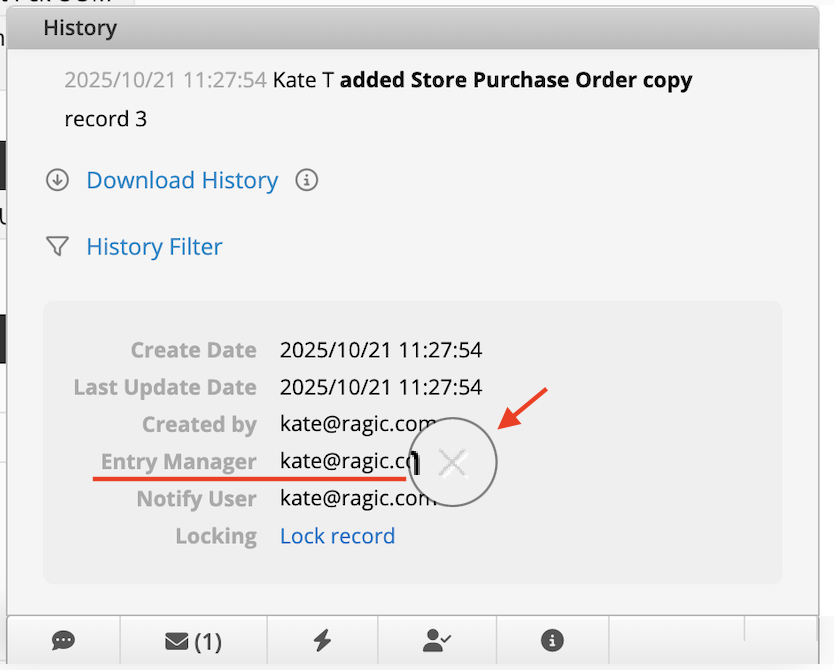
When a user is assigned Survey User access rights on a Ragic sheet, they can view or edit a record if they are labeled as its Entry Manager. This label can come from two different scenarios:
The user created the record themselves.
The user was assigned as the Entry Manager through a designated “Assignment” field.
When the Entry Manager label is removed from a record, the corresponding Survey User immediately loses access to that entry. However, depending on how the user gained the Entry Manager status, the method to remove it differs.
If the user was assigned via a field (method 2), the Entry Manager label automatically updates when that field value changes.
If the user originally created the record (method 1), the only way to remove their Entry Manager label is manually — through the information (“i”) panel on the record, or by batch removal. You can find detailed steps on how to remove Entry Managers here.
With this background in mind, there are two possible approaches depending on your operational needs:
A) Restrict Survey Users from creating new entries
If you want to prevent Survey Users from becoming Entry Managers through record creation, you can set up a “No Create” rule. This ensures that users are only labeled as Entry Manager when explicitly assigned.
B) Periodically remove Entry Managers who no longer match the current assignment
If users are reassigned regularly, you can automate part of the cleanup using the following setup:
Add a “Create User” field and set its Default Value to Create User Name ($USERNAME).
For existing records, you can populate the missing values using Populate Empty Entries.
Create a field with a Conditional Formula to check whether the Create User equals the Assigned To user.
Save a Shared View filtering only mismatched entries.
Use Mass Update to remove Entry Manager labels in bulk for users who should no longer have access. Please note that the Mass Update action requires specifying which users to remove. Since a user may still be a valid Entry Manager for some records but not others, it’s unlikely you can clear all outdated Entry Manager labels in one go. We recommend running the update in separate rounds, based on which users should be removed.
This design is intentional — Ragic safeguards the right of a record’s creator to view what they’ve created. While it’s technically possible to remove that right, the process is manual by design to prevent accidental data lockouts.
If you have a specific operational reason that requires automatically removing a creator’s access — for example, due to strict compliance or privacy requirements — please feel free to share more details about your use case. This will help us assess whether a more suitable configuration with greater automation, or a potential enhancement, could be explored.