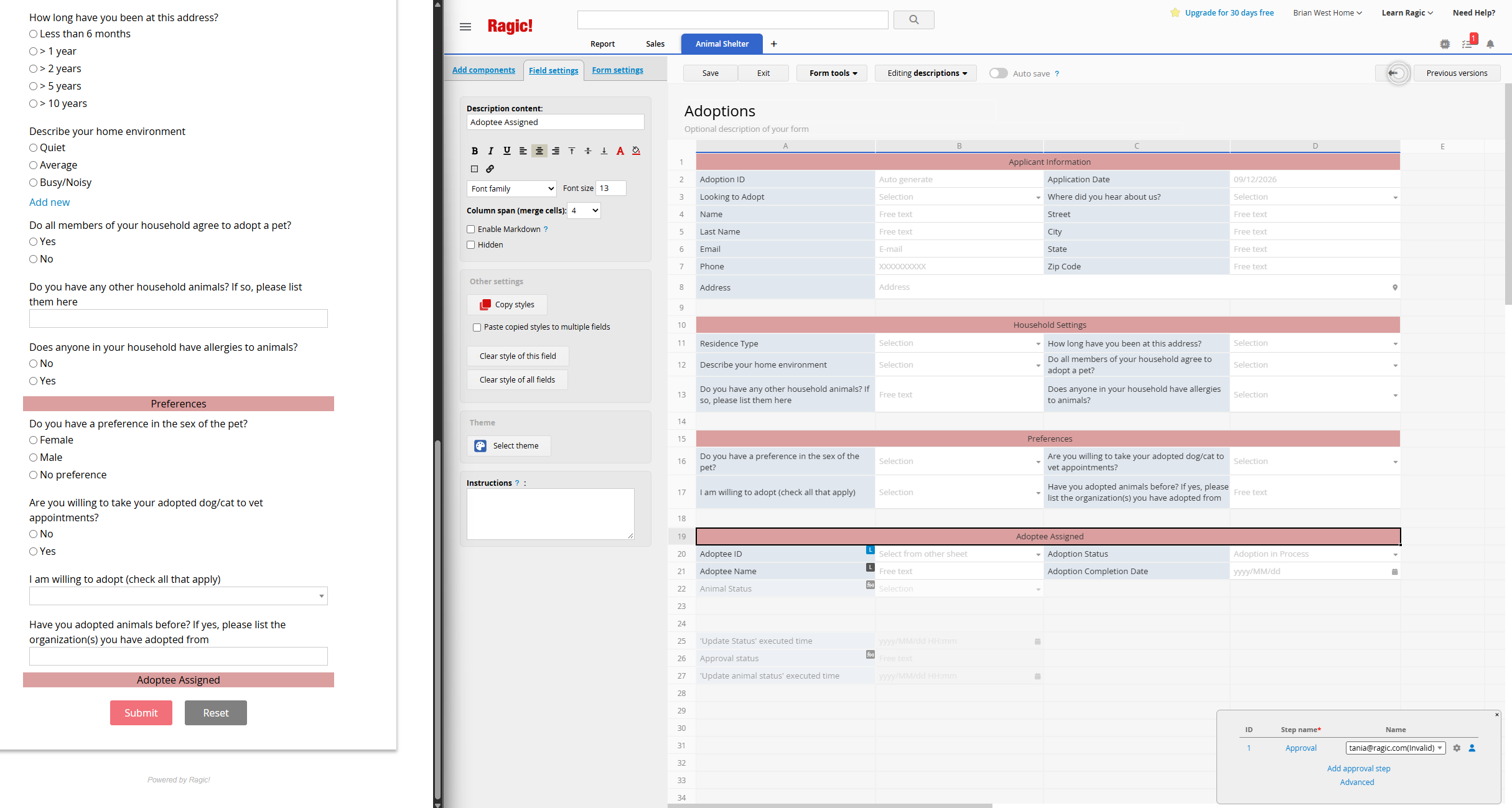
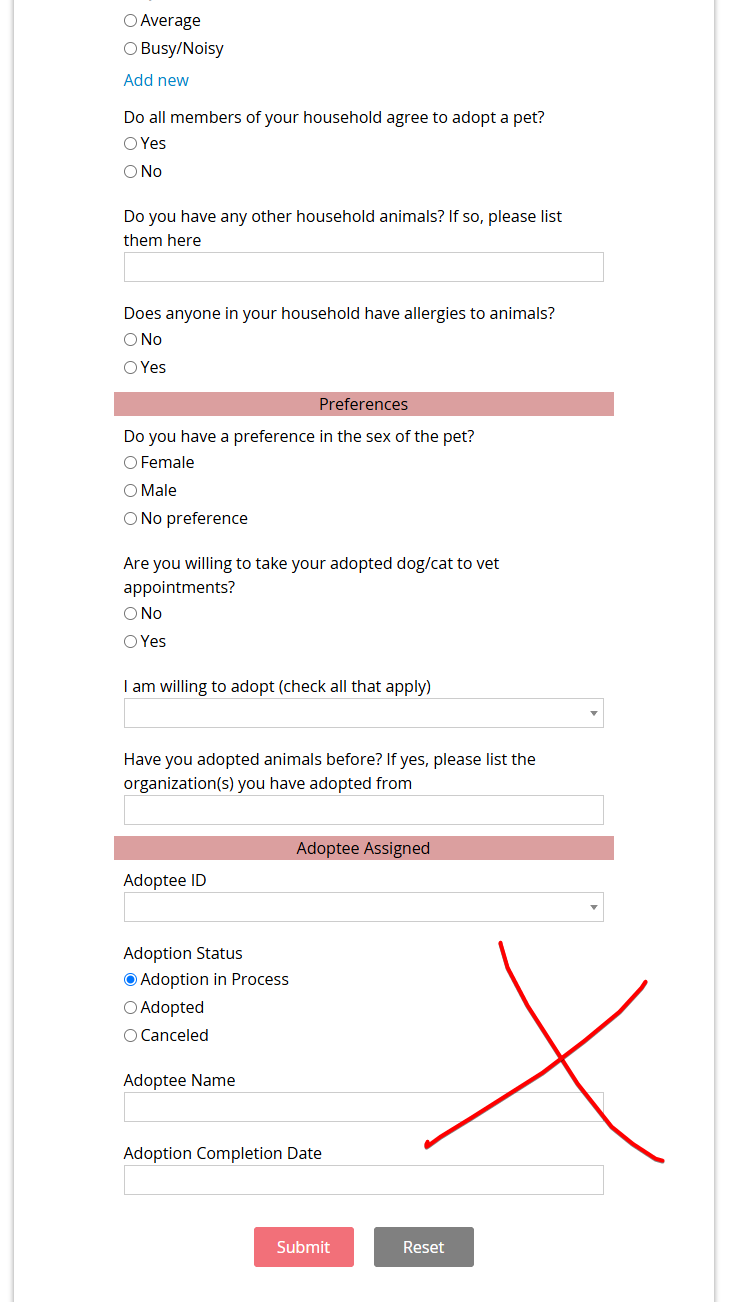
Using the Animal Shelter Management template, made the Adoptions form public but changed Everyone access rights and then removed Everyone field rights to the fields that they should not see, but I can’t change whether the title of that section is seen or not. Q: Is there a way to hide this title?
Hi there,
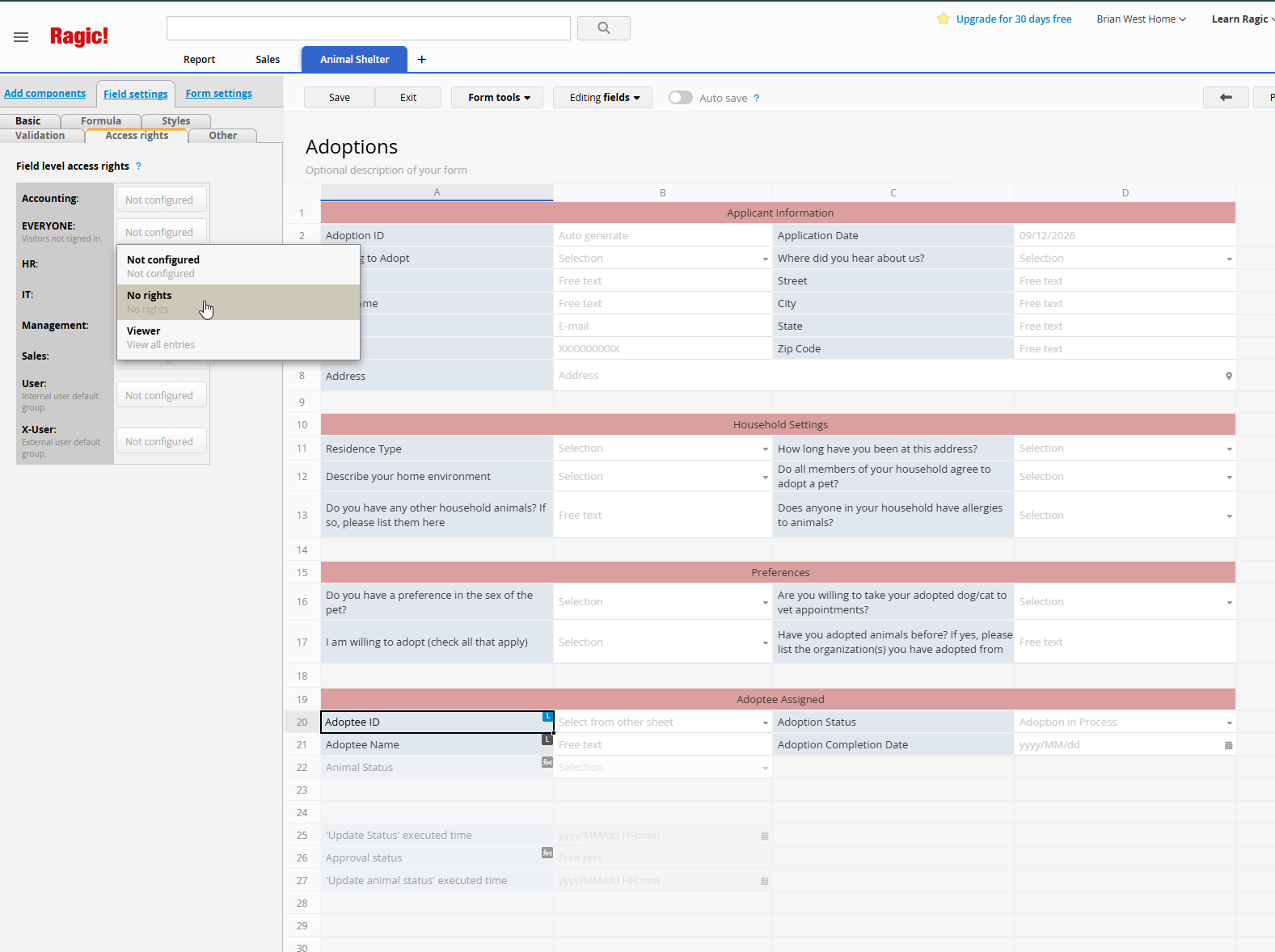
Thanks for sharing the screenshots. From what you’ve described, it sounds like you’ve made the Adoptions form public and set Field Level Access Rights for the “EVERYONE” group to hide the fields that shouldn’t be visible to non-logged-in visitors — that’s a solid approach for keeping one shared form design while still controlling exactly what public viewers can see.
The “Adoptee Assigned” label you’re trying to hide, though, is a Description Field rather than a regular data field — it’s only there as a static section heading. Field Level Access Rights are built to control data-holding fields, so that setting isn’t available on Description Fields, which is why the heading stays visible on the public form even after you’ve locked down the fields underneath it.
There isn’t currently a way to apply group-based visibility directly to a Description Field. I’ve logged this as feedback for our product team to evaluate for a future update, and our team will follow up with you if support for this becomes available.
In the meantime, here’s a workaround using what’s already supported today: instead of a Description Field, you could recreate that section title as a regular field — for example, a Rich Text Editor field with a fixed value generated by a Strings Formula and the Hide Field Header option enabled. You can also have the field styled and spanned across columns so it reads as a title bar. Since it’s a genuine field rather than a description, you’d be able to apply Field Level Access Rights to it and hide it from the “Everyone” group the same way you did with your other restricted fields.
Let us know if you run into anything setting that up.
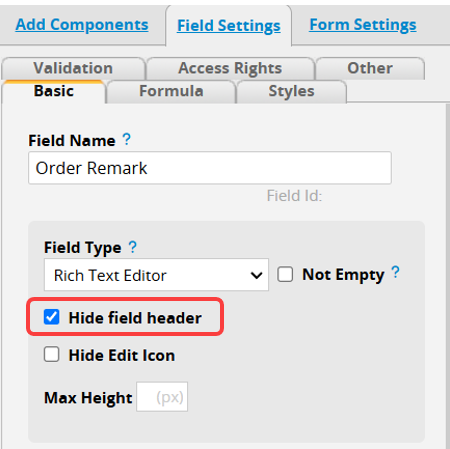
Thank you very much.
I’m looking for a Shelter Management solution for a small cat rescue. Typically, rescues have public online forms for adopter, foster, and volunteer applications, so I would suggest setting up your example that way. No-one will be doing in-house data entry via paper application forms anymore. Typically, one does not need to create an account to submit an online application but sometimes that’s included as optional so that the public can update their application.
(The bottom fields that I hid have some dependencies that meant they needed to be completed to submit the form (so public could not submit), so I would need to delete the fields to make it work but don’t want to break it before I learn how it works.)
Hi there,
Thanks for the extra context, that’s helpful. Since Ragic is a no-code database, our templates give you a solid starting point, but most rescues still end up adjusting a few things to match their exact process — that’s expected and by design.
For the three application types you mentioned (adopter, foster, and volunteer), while it sounds like you’ve installed our Animal Shelter Management template, it includes dedicated Adoptions, Foster Care, and Volunteers sheets that map closely to what you’re describing. Please check out the linked document to learn more about the template mechanism. If there are any questions regarding the template sheets, feel free letting us know.
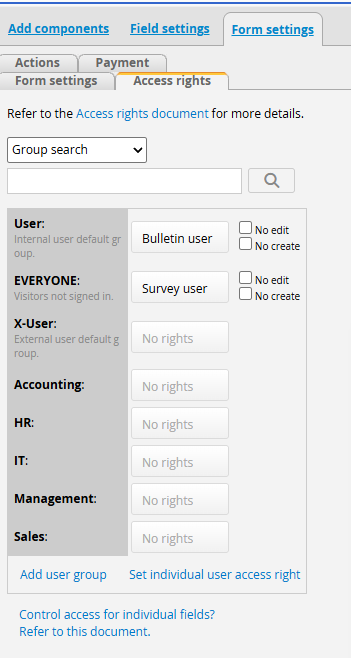
Opening those sheets to public applicants without requiring an account is itself a great example of the kind of customization you’ll be doing — you can walk through the setup in this guide, choosing “Survey User” or “Bulletin User” for the EVERYONE group depending on whether applicants should also see other people’s submissions. I understand that you’ve already played around with the Access Rights setting, but do let us know if there’s any further questions.
On the fields you hid: it makes sense that you don’t want to delete anything on your live sheet before you’re confident about how it behaves, especially with required-field dependencies involved. You don’t have to choose between hiding the fields and risking your working design — you can create a Multiple Version of the Adoptions sheet as a separate “public” copy, and only remove the required-field settings and the Adoptee Assigned section on that copy, leaving your original untouched. This article walks through that approach side by side with Field Level Access Rights, so you can see which fits your workflow better.
Take your time exploring these, and let us know if a specific step doesn’t behave the way you expect once you’re testing it.
1 Like