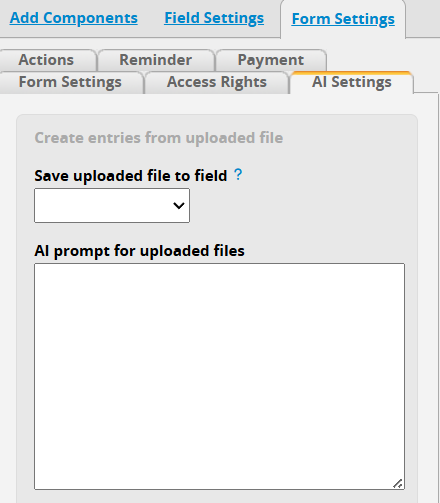
I noticed from the Ragic design guide that there should be an AI Settings tab next to the Access Rights tab in the design editor. I can’t see that anywhere on my sheets. Do I need to activate it somehow?
Can I use the AI Settings tab and train the AI to translate the Chinese from my image scan to populate an English field on the sheet? I also want to upload the whole scanned image into an image field. Is that possible too?
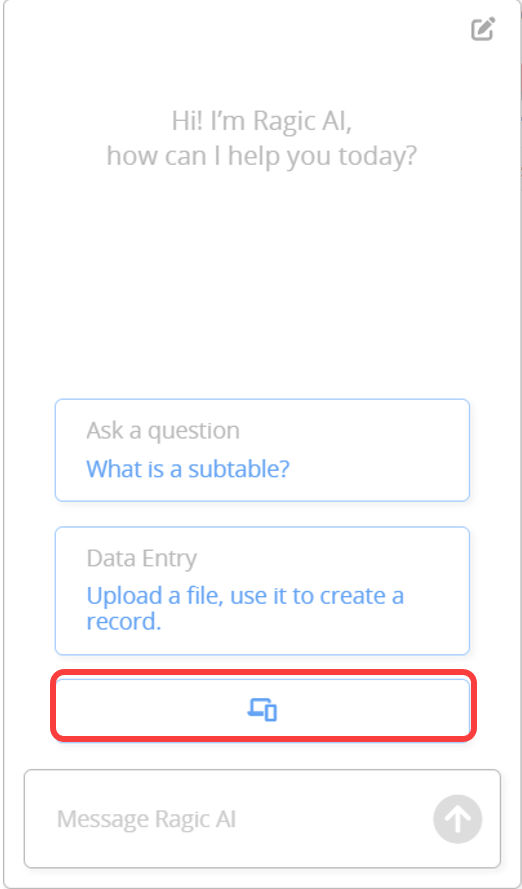
Mobile Device Scanning: This feature is pretty cool. I can click the scan icon on the AI panel on my laptop and have my phone camera activated to scan a live image. What would be even better is if I could use my phone to scan a saved screenshot from my image library too. Please let me know if that is possible.
Hi Pax, thanks for the detailed questions — let me go through each one.
The Sheet AI Settings tab should already be visible in your design editor without any additional activation. Please first try clearing the cache of your browser or using Incognito mode to access the form. If you’re still not seeing the AI Settings tab, please write to us at support@ragic.com with the URL of the sheet you’re working on and we can take a closer look.
On the translation use case: yes, this is supported. Under the Sheet AI Settings tab, you can define rules that instruct Ragic AI on how to process the uploaded file when auto-creating new entries. So you can set instructions such that to have Ragic AI translate the contents of an uploaded image and populate the corresponding fields when creating the new record.
For saving the scanned image itself: also handled under the same Sheet AI Settings tab — you can set a rule to have the uploaded image saved to a designated field on the sheet via the “Save upload file to field” option.
On the mobile scanning workflow: currently, when a scan is initiated from the desktop and confirmed on the Ragic mobile app, the app opens the device camera for a live photo only. Selecting an existing image from the device’s photo library is not available at this stage. I’ve noted your use case and passed it along to the development team — if this becomes available in a future update, we’ll post back on this thread.
OK the AI Settings don’t seem to work at all for me. I’ve even asked the AI agent to check my formatting and made the changes that it suggested. But the AI still does not follow the rules I have set. Who can help me format my rules list to get the results I need? Should I open a ticket?
So, I was in the middle of entering a support ticket when I decided to try uploading a .jpg directly from my computer to the AI chat, rather than using the phone to take a remote photo through the Ragic Android app… and guess what? Ragic followed my instructions perfectly.
So the problem seems to be that Ragic AI does NOT check the AI rules when scanning an image through the Ragic Android app, but DOES check the AI rules when uploading the same photo saved to my computer first, then uploaded from the browser.
I hope it’s an easy fix to extend the AI rules to scanned photos through the Ragic phone apps too. It’s very convenient to just scan a business card with my phone and have it processed, rather than go through the steps of saving the photo to my computer first, then uploading it.